How to Prepare a Print-Ready File: Bleed, Resolution and Colour Mode Explained Simply
Table of Contents
We see it happen a lot down at our London workshop. A spectacular, glowing design lands on our screens, but the physical paper print feels completely disconnected from what the creator actually saw. When you upload a digital file to us at Exact Print UK, we genuinely want your posters, brochures, or custom hoodies to turn out absolutely perfect on the very first run. No reprints. No delays.
Getting digital artwork properly prepped for heavy-duty commercial printers requires a few quirks. We need to look at three main pillars of print setups so your next project looks incredibly sharp, crisp, and completely professional.
The Big Three: Bleed, Resolution, and Colour Modes
Understanding Bleed and Quiet Zones
Think of bleed as a bit of extra breathing room. It is the small outer border of your design that gets sliced off by big industrial blades during trimming. Paper stacks can shift a tiny bit under a heavy blade, you see. If your background stops exactly at the edge, you might end up with thin, ugly white lines on your finished product.
• Our Standard Rule: We always ask for a 3mm bleed space on all four sides of a file.
• The Safety Margin: Keep important things like text, tiny symbols, or logos 5mm inside the crop lines so nothing gets accidentally clipped.
• The Big Trick: Stretch your background photos, textures, or solid blocks of colour all the way out to the very edge of that extra 3mm zone.
Getting the Resolution Right for Crisp Text
Phone screens show images using pixels, but physical paper uses tiny physical dots of ink. That gorgeous photo on your laptop can easily turn into a blocky, fuzzy disaster when printed large. We measure file clarity using dots per inch, or DPI.
For standard documents, make sure your photos are saved at 300 DPI at the actual, real-world size you want. Low settings cause jaggy, ugly lines. Huge settings just make giant files that crawl through our computers. For massive roadside banners, 150 DPI is usually plenty because people look at them from further away.
Switching to the Correct Colour Mode
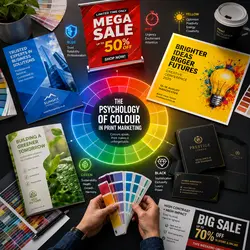
This is where most mistakes happen. Screens use light to blend shades using the RGB colour mode (Red, Green, Blue). Commercial press rollers use physical ink to layer shades using the CMYK colour mode (Cyan, Magenta, Yellow, and Key Black).
If you send us an RGB file, our machines are forced to convert the colours automatically. Neon greens, bright pinks, and deep electric blues will instantly look dull or muddy. We highly recommend changing your workspace settings to CMYK inside Illustrator, Photoshop, or Canva before exporting.
Ready to Print? Check This
Before hitting that big send button on the Exact Print UK dashboard, take a quick second to tick off these steps:
• Export as a PDF: High-quality PDF files lock your layout elements, text paths, and image frames tightly in place.
• Convert Fonts to Outlines: Turn all live text layers into vector shapes so the fonts do not shift if our computer lacks your exact typeface.
• Check the Dimensions: Make sure your digital canvas width and height exactly match the print size you are buying.
Your Partner for Premium London Printing
Tweaking things on your screen saves heaps of time later. It makes your banners look incredible. Over at Exact Print UK, we handle it all anyway, from speedy book stitching to massive shop signs, totally spot on.
Setting up your files with proper edges, dense graphics, and the right ink profiles gets you a beautiful finish. Bring us your files today, and we will get to work.